
Terminal interface
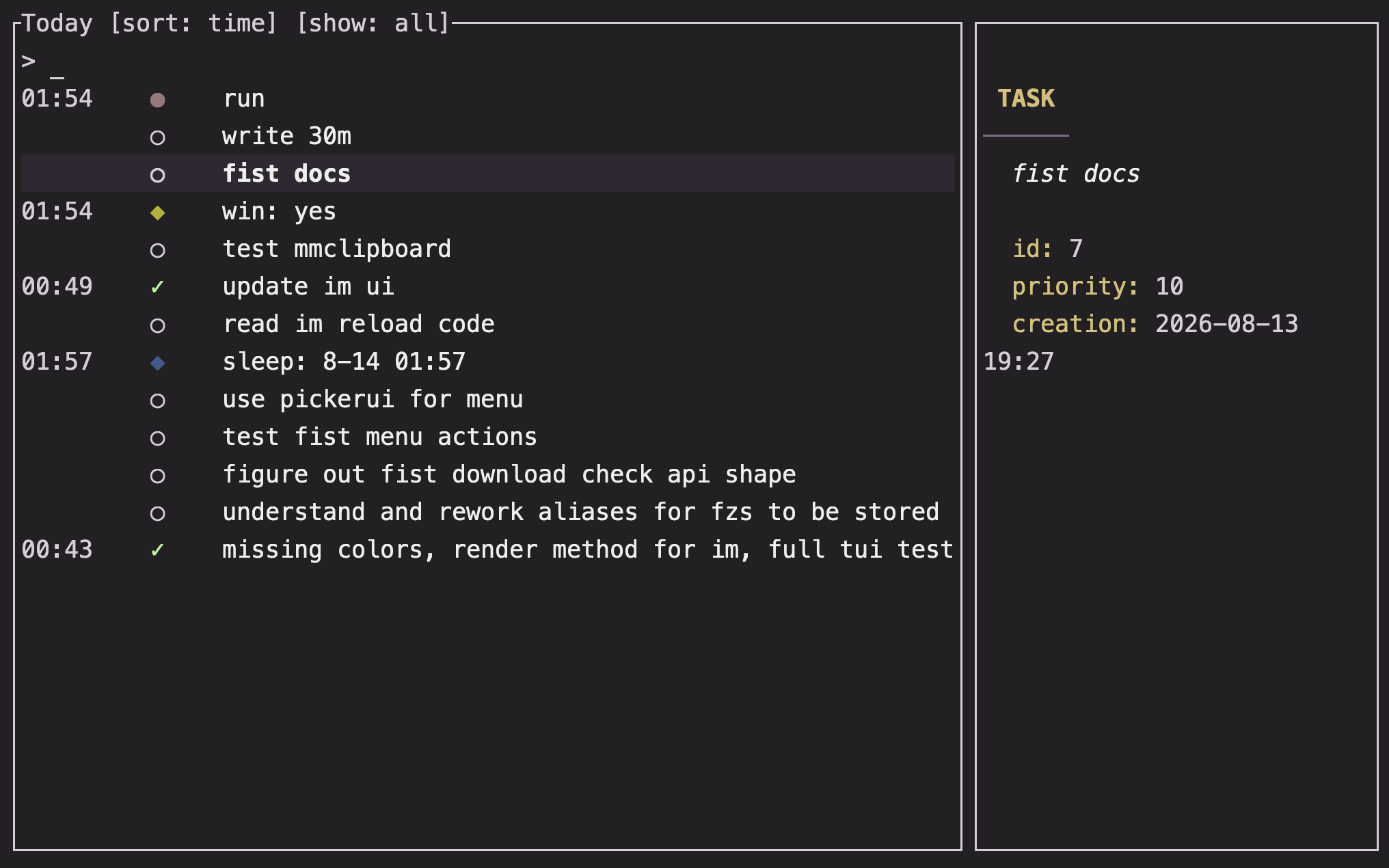
The interactive Im views combine a searchable list, a preview pane, and actions for updating the selected record.
Overview
When stdout is a terminal, today and task views open as interactive pickers. Type to filter the current list, move through rows, and use the preview to inspect the selected record.
Basics
Navigate the list
Use the arrow keys or mouse to move through rows. Type a query to narrow the list. The active row is highlighted; the today view shows time and label, while the task view shows status, priority, and date information.
alt-h opens the live keybinding help in the preview pane. This is the most reliable reference when you customize or extend your key bindings.
Inspect the preview
The preview shows the selected record in context.
- Mood and journal entries show their body and linked tasks or trackers.
- Tracker entries show their value, previous entry, and linked mood when available.
- Tasks show their ID, priority, dates, completion state, body, parent, and children.
The preview is visible by default. alt-[ toggles result wrapping and alt-] toggles preview wrapping. The preview can be hidden or scrolled using the built-in actions shown by alt-h.
Use the main actions
| Key | Action |
|---|---|
enter | Update the selected task, edit a mood body, or update a tracker |
ctrl-e | Edit the selected body or tracker value |
ctrl-l | Open the link prompt in the today view |
delete or ctrl-h | Open the delete confirmation |
tab | Switch task pending/completed mode, or today horizon |
ctrl-s | Cycle the visible category |
alt-s | Toggle time/due sorting and priority sorting |
ctrl-r | Refresh from the local data store |
esc or ctrl-c | Quit the view |
The exact bindings are live and may be changed by your interface configuration. Use alt-h before relying on a custom setup.
Update from the today view
enter is context-sensitive:
- On a mood or journal row, it opens the body in your editor.
- On a value tracker, it opens an input prompt.
- On a null tracker, it records another timestamp or count.
- On a task, it applies the task's completion action.
Deleting a recurring task stops future occurrences. Every destructive action opens a confirmation overlay.
Run fullscreen
Add -F before a view command when you want the interactive picker to use the full terminal layout:
im -F @
im -F
FAQ
How do I find a task quickly?
Open im @ and type a distinctive part of its name. The list narrows while you type; use the preview to confirm the task before pressing enter.
Why does enter not quit the interface?
In Im, enter is an update action rather than the picker’s accept-and-exit action. Use esc or ctrl-c to leave the view.
How do I see the controls for my current setup?
Press alt-h. The help pane reads the active bindings, including bindings supplied by your own interface configuration.