
Preview
The preview pane runs shell commands formatted against the highlighted row—or displays static text, keybinding help, or images—alongside the results table, updating asynchronously as you move the cursor.
Preview layouts and cycling
Preview geometry and commands are configured through one or more [[preview.layout]] blocks (CLI alias p.l or P, with px as a shortcut for preview.layout.command). Defining multiple layouts lets you cycle between different pane positions, sizes, or inspection commands at runtime:
[preview]
wrap = true
scroll_wrap = true

[[preview.layout]]
command = "bat --color=always --style=-numbers -- {1}"
side = "right"
percentage = 40
min = 30
max = 120

[[preview.layout]]
side = "top"
percentage = 55
min = 5
max = 50

[[preview.layout]]
side = "right"
percentage = 75
min = 5
max = 240- Command inheritance: A
[[preview.layout]]entry that omitscommandkeeps the command already active in the preview state, so extra layouts can reposition or resize the pane without re-specifying the script. - Per-layout overrides: Each layout entry can set
side(right,left,top,bottom),percentage,min,max(max = 0disables the layout), plus per-layoutframeandinitialscroll settings layered over[preview.frame]and[preview.initial]. - Visibility threshold (
preview.show): Acceptstrue,false, or a minimum cell count that the terminal's width (left/right) or height (top/bottom) must reach before the preview opens (see Options). - Preview environment: Preview commands run under
previewer.shell(defaulting to$SHELL -c) with{}template placeholders expanded (Template).
| Action | Default keys | Effect |
|---|---|---|
SwitchPreview | ? | Toggles the preview pane |
NextPreview | alt-/ | Cycles to the next enabled layout (max > 0) |
PrevPreview | alt-shift-/ | Cycles to the previous enabled layout |
See Binds for direct layout actions (SwitchPreview(idx), SetPreview).
Resizing and dragging
You can adjust the preview split at runtime with the keyboard or the mouse:
- Keyboard resizing (
ExpandPreview,ShrinkPreview):ExpandPreview(n)(alt-shift-=/alt-+) andShrinkPreview(n)(alt-shift-hyphen) grow or shrink the preview pane's width (forleft/rightlayouts) or height (fortop/bottomlayouts) byncells (default1). Passing0(ExpandPreview(0)orShrinkPreview(0)) clears the manual size override and returns to the active layout'spercentage,min, andmaxrules. Cycling or switching layouts also resets any manual size override. - Mouse dragging (
preview.drag_width): Dragging the divider edge between the results pane and the preview pane resizes the preview with the cursor. By default, the draggable strip width equals the preview frame's border and padding width on the shared edge; setpreview.drag_widthto an explicit cell width, or0to disable drag resizing.
Scrolling, sticky headers, and jumping
[preview.initial] (CLI alias p.i, or scroll in TOML) controls where the preview viewport starts when a new item is selected and how many header lines stay pinned at the top:
- Target line extraction (
index,offset,percentage): Settinginitial.indexto a column name or 0-based column index parses a line number from that column and scrolls the preview so the target line sitsinitial.percentage(0–100) from the bottom of the pane.initial.offsetshifts the target line and defaults to-1whenindexis set so 1-indexed line numbers (such asrg --line-numberoutput) land on the exact match. - Sticky headers (
initial.header_lines, aliash): Keeps the firstNlines of preview output fixed at the top of the pane while the remaining body lines scroll underneath. - Tail mode (
initial.tail, aliast): Starts the preview scrolled to the bottom of the output (while still keeping anyheader_linespinned at the top).
[preview]
show = true
scroll.index = "pos"
scroll.percentage = 70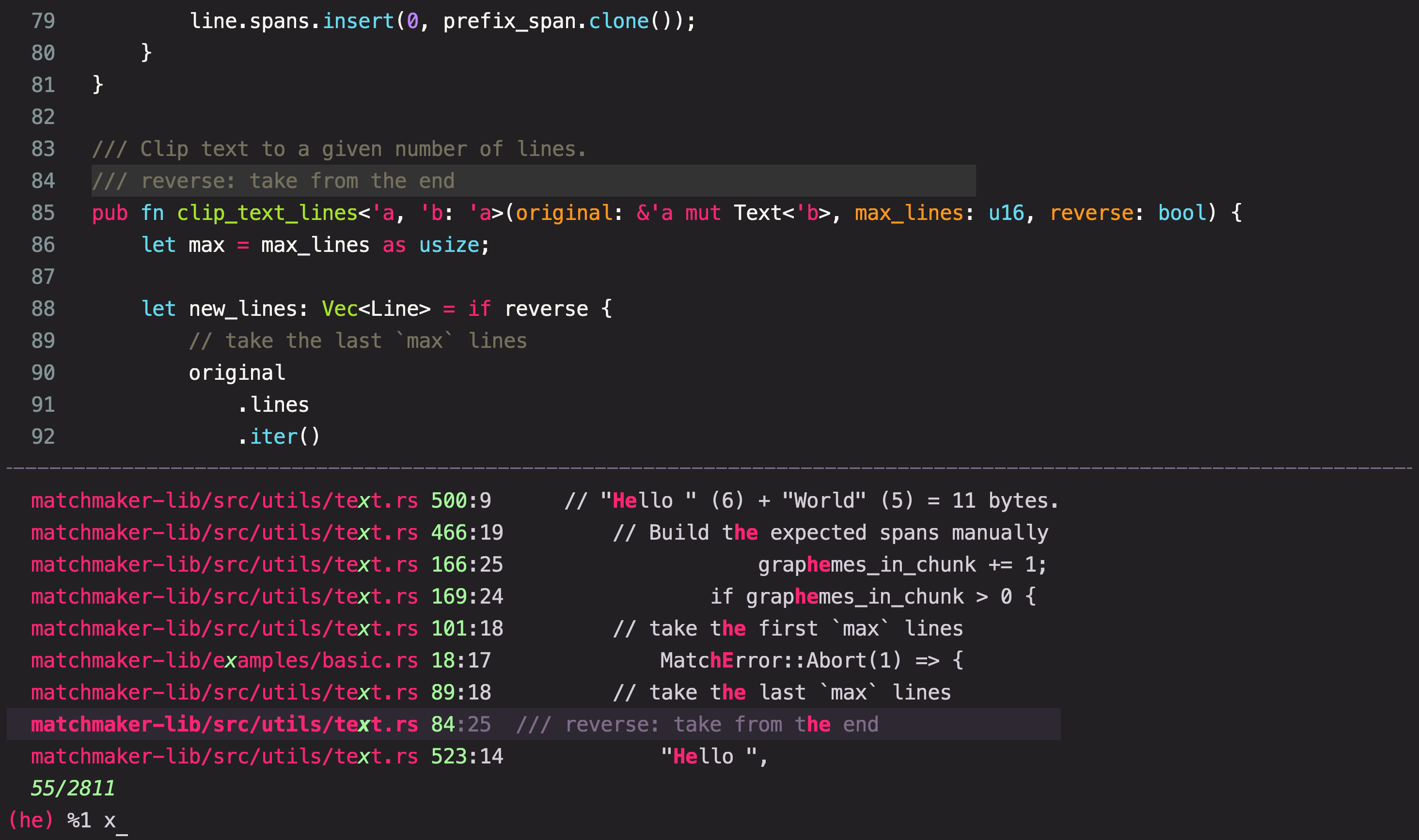
Inside the TUI, preview scrolling and wrapping are controlled independently from the results table:
| Action | Default keys | Effect |
|---|---|---|
PreviewUp(n) / PreviewDown(n) | Mouse wheel on preview | Vertical scroll by n lines (default 1) |
PreviewHalfPageUp | shift-pageup | Upward scroll by half the preview pane height |
PreviewHalfPageDown | shift-pagedown | Downward scroll by half the preview pane height |
PreviewJump | ctrl-j, shift-home, shift-end | Three-way jump between end of output, top (0), and previous scroll offset |
TogglePreviewWrap | alt-shift-w | Line-wrapping toggle in the preview pane (preview.wrap) |
PreviewScroll(n) and PreviewHScroll(n) (see Binds) provide persistent line/cell scrolling and image zoom/pan. When preview.scroll_wrap = true (p.c), scrolling past the first or last line wraps around to the opposite end.
Ad-hoc commands and fullscreen paging
Beyond the commands configured in [[preview.layout]], several actions let you swap preview content on the fly or inspect long output fullscreen:
Preview(cmd): Replaces the active preview command template withcmdand opens the preview pane; triggeringPreview(cmd)again with the same template toggles the preview closed.RunPreview(cmd): Runs a one-off command and displays its output in the preview pane until the selection moves orSetPreviewrestores the layout command. Calling bareRunPreviewwith no argument (defaultctrl-shift-l) executes the current preview command in the foreground terminal and returns to the picker.Help(alt-h) and@help(F1):Helptoggles a live keybinding summary inside the preview pane.@helppages the active preset'sREADME.md(or leading#comment header) followed by the resolved keybindings fullscreen in the pager.ShowPreview([cmd])(ctrl-l,F11): Streams the current preview command (orcmdwhen given) into the fullscreen interactive pager without polluting redirectedstdout, and resumes the picker when you exit the pager withq. See Pager for[pager]options, external pager fallback (MM_PAGER->$PAGER->less->more), and pager keybindings.
Image previews
When previewer.images is enabled (the default) and a preview command's output begins with an <MM_IMAGE> header—most commonly produced by mm -q --image {1} && exit 0 at the start of a layout script—Matchmaker renders the image directly inside the preview pane using the terminal's graphics protocol (kitty, sixel, iterm2, or halfblocks fallback under preview.image.protocol = "auto").
mm -q --image {1} && exit 0
bat --color=always --style=-numbers -- {1}
Any text written after the image payload is displayed in the same preview pane: the first preview.image.header_lines lines are drawn above the image, and the remaining lines scroll beneath it. While an image is visible in the pane, PreviewScroll(n) zooms the image in 0.1x increments (floored at 1.0x), PreviewHScroll(n) pans horizontally, and PreviewUp / PreviewDown pan vertically before scrolling into the text below. See Image for mm --image options, header syntax, and [preview.image] fitting rules.