
Getting started
Matchmaker (mm) is a terminal fuzzy finder and workflow runner. It filters streams of text or command output across multiple columns, renders live text and image previews, and binds keys and events to shell or Lua actions.
Install
Prebuilt binaries are published for Linux (x86_64 and aarch64 static musl), macOS (x86_64 and aarch64), and Windows (x86_64).
Run the install script on Linux or macOS to detect your platform, download the latest release archive, and place mm in ~/.cargo/bin (when present on PATH) or ~/.local/bin (invoking sudo only if the target directory is not writable):
curl -fsSL https://raw.githubusercontent.com/Squirreljetpack/matchmaker/main/install.sh | shOn Windows, run the PowerShell installer:
powershell -ExecutionPolicy Bypass -c "irm https://github.com/Squirreljetpack/matchmaker/releases/latest/download/matchmaker-cli-installer.ps1 | iex"Or install mm through a package manager:
# Homebrew
brew install Squirreljetpack/tap/matchmaker

# Arch Linux (AUR)
yay -S matchmaker-bin

# npm
npm install -g @squirreljetpack/matchmaker

# Cargo
cargo install matchmaker-cli
Optional runtime tools and editor/pager detection
mm runs without external runtime dependencies, falling back to find and cat on Unix or Get-ChildItem and Get-Content on Windows. Installing common CLI utilities upgrades the default file discovery, preview, and image commands:
| Tool | Role |
|---|---|
fd | Default file discovery command (fd --strip-cwd-prefix --print0) |
bat | Syntax-highlighted file previews and default $PAGER fallback |
eza | Directory tree previews (eza --color=always -T -L 2) |
chafa | Terminal image fallback when mm --image cannot decode a file natively |
When $EDITOR or $PAGER is unset in your environment, mm automatically selects an installed editor (hx, nvim, vim, vi, nano, or notepad on Windows) and pager (bat, less, more, or cat).
First run
Pipe any line-delimited stream into mm, or run mm directly in a terminal to execute the configured start.command (which recursively lists files in the current directory):
find . | mm
mm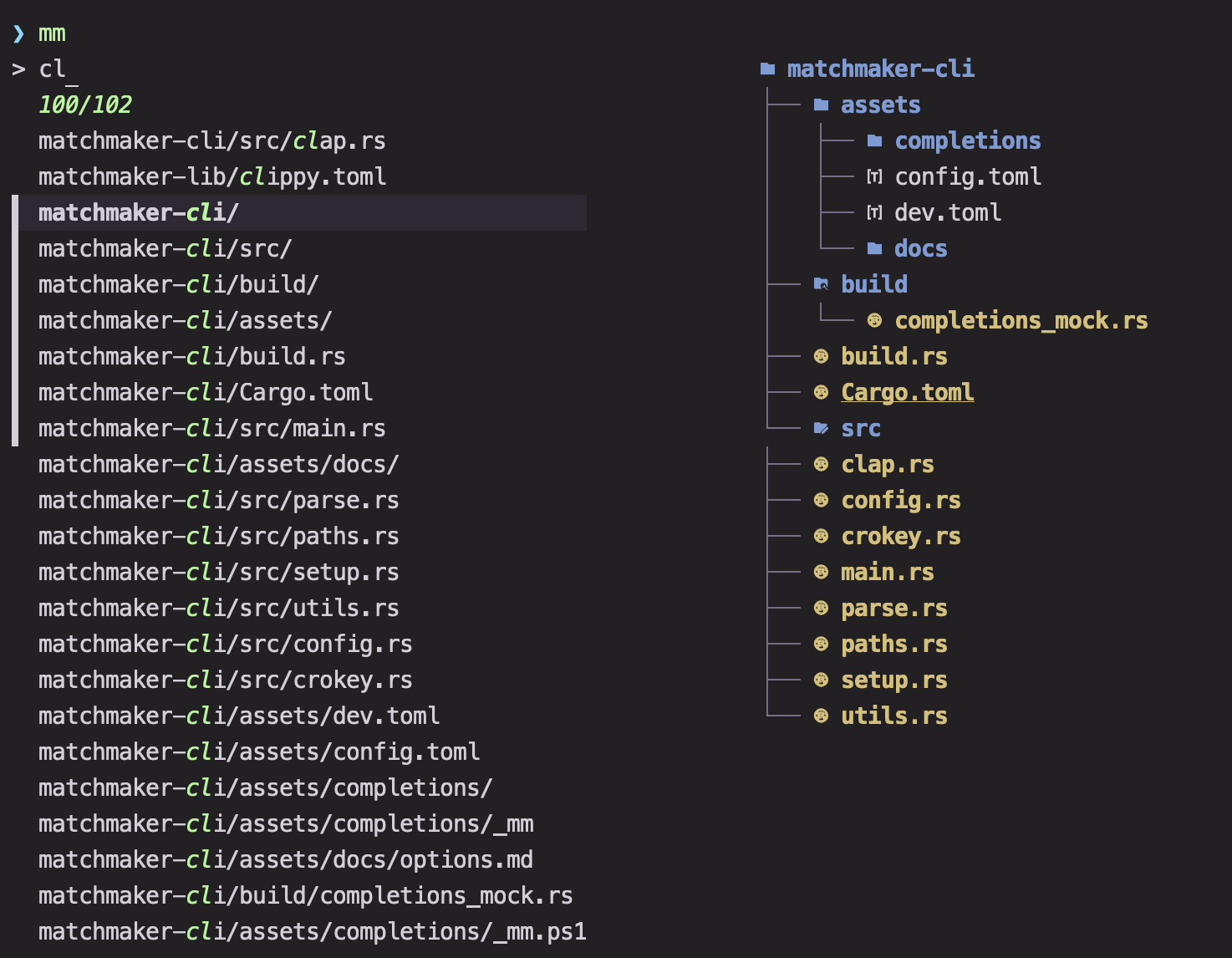
- Filter — Type into the query prompt to fuzzy-rank matching rows.
- Select — Move the cursor with
upanddown, toggle multi-selection on rows withtab, and pressenterto print the accepted selection to standard output. - Preview — Cycle preview layouts with
alt-/or toggle the preview pane with?.
See Input and data sources, Queries, and Preview for details on populating rows, filtering columns, and controlling the preview pane.
Core keybindings
The default configuration pairs built-in navigation with semantic aliases (@accept, @open, @reload, @copy, @help). Expand the table below for the full default keymap, or press alt-h inside mm to inspect active bindings at any time.
Default keybindings by category
Accepting and exiting
| Keys | Action | Section |
|---|---|---|
enter | Accept current or selected rows (@accept) | Binds |
alt-enter | Secondary accept (@return) | Creating presets |
esc / ctrl-c | Quit with exit code 1 (Quit(1)) | Other |
Selection and navigation
| Keys | Action | Section |
|---|---|---|
up / down | Move cursor one row | Binds |
pageup / pagedown | Scroll half a page up or down | Binds |
alt-1 / alt-0 | Jump to first (Pos(0)) or last (Pos(-1)) row | Binds |
tab / shift-backtab | Toggle row selection and move down or up | Binds |
ctrl-a / ctrl-shift-a | Cycle all selections or clear selections | Binds |
Columns, scrolling, and sorting
| Keys | Action | Section |
|---|---|---|
alt-. / alt-shift-. | Focus next or previous column | Queries |
alt-\ / alt-shift-\ | Hide active column or restore hidden column | Queries |
alt-left / alt-right | Scroll result cells horizontally (HScroll) | Queries |
alt-up / alt-down | Scroll inside multi-line result rows (VScroll) | Queries |
alt-w | Toggle result and header line wrapping | Queries |
alt-s / alt-n / alt-r | Lexicographic sort, numeric sort, or reverse order | Queries |
Preview and pager
| Keys | Action | Section |
|---|---|---|
? | Toggle preview pane visibility | Preview |
alt-/ / alt-shift-/ | Cycle next or previous preview layout | Preview |
shift-pageup / shift-pagedown | Scroll preview half a page up or down | Preview |
ctrl-j | Jump between end, top, and previous preview position | Preview |
ctrl-l | Open preview output in fullscreen pager (ShowPreview) | Pager |
Commands and help
| Keys | Action | Section |
|---|---|---|
ctrl-o / alt-o | Open in $EDITOR (@open) or replace mm (@open_2) | Execute |
ctrl-r | Reload input command (@reload) | Input and data sources |
alt-[ / alt-] | Previous or next command / preset (@prev / @next) | Using presets |
ctrl-y / alt-p | Copy to clipboard (@copy) or print to stdout (@print) | Binds |
alt-h | Show live keymap in preview (Help) | Preview |
F1 | Page preset README.md and resolved keymap (@help) | Using presets |
Run mm --test-keys to inspect how your terminal reports key combinations, and see Binds (or mm --doc binds) for the complete trigger, event, mode, and action reference.
Configuration
mm loads its base configuration file from the first matching location:
- The path passed to
--config <PATH> $MATCHMAKER_CONFIG_DIR/config.toml(when$MATCHMAKER_CONFIG_DIRis set and the directory exists)~/.config/matchmaker/config.toml(when~/.config/matchmakerexists){PLATFORM_CONFIG_DIR}/matchmaker/config.toml(such as~/.config/matchmaker/config.tomlon Linux,~/Library/Application Support/matchmaker/config.tomlon macOS, or%APPDATA%\matchmaker\config.tomlon Windows)
Run mm --dump-config in an interactive terminal to write the commented default config.toml to disk if it does not already exist. When standard output is piped, --dump-config prints the active, merged configuration (including any -o preset or CLI overrides) to standard output instead:
# Write the default config.toml to disk
mm --dump-config

# Inspect the resolved configuration on stdout
mm --dump-config | cat
Any setting in config.toml can also be overridden on the command line using path=value or path value pairs and short section aliases:
mm cmd "ls -la" px "bat --color=always {}" tui.p=80See Options (or mm --doc options) for the full configuration schema and CLI shorthand aliases, and Using presets to download ready-made workflows and color themes.